
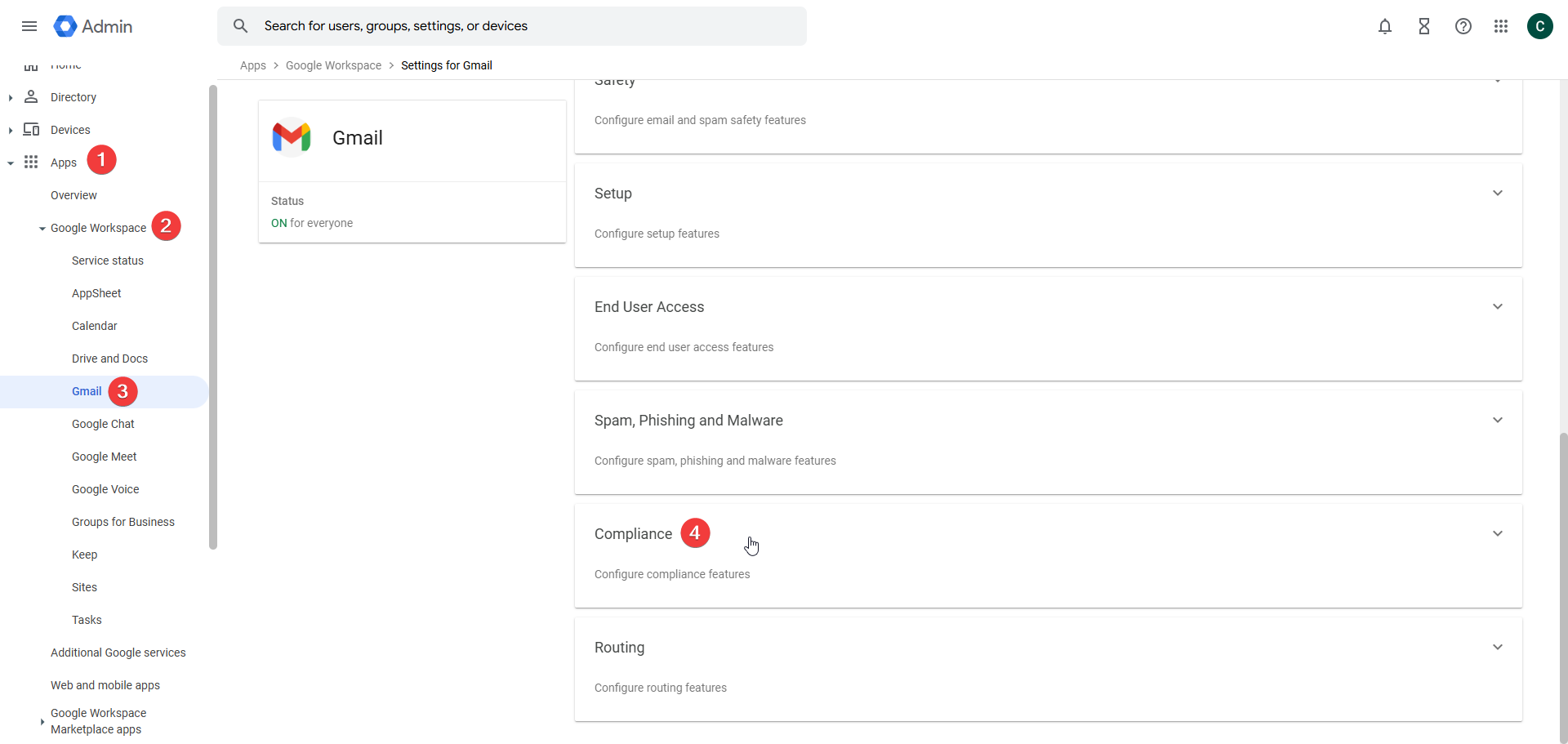
STEP 1 – Login and go to Gmail Settings
Go to your Gmail Administrator settings: http://admin.google.com/
Click Apps-> Google Workspace ->Gmail -> Compliance
STEP 2 – Access the Black Pearl Mail Compliance settings
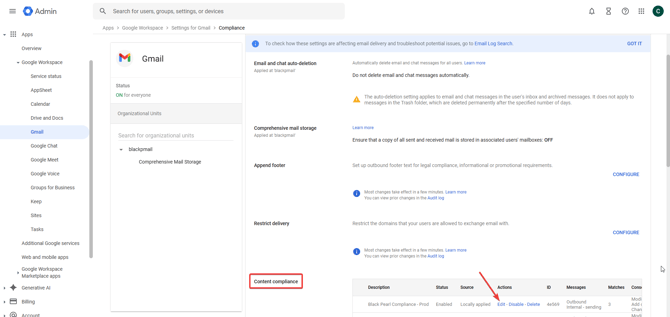
- Scroll down and find the Black Pearl Compliance created previously.
- Click Edit.
STEP 3 – Update the Black Pearl Mail Compliance settings
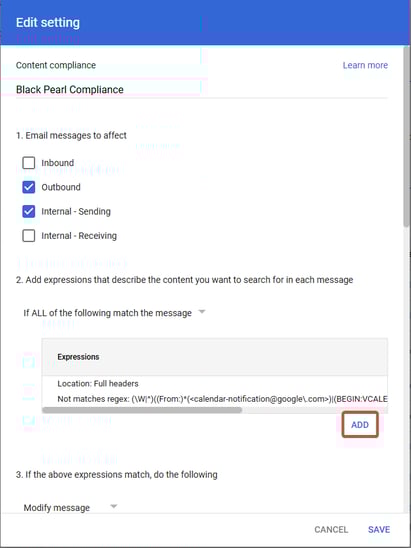
- Add an Expression
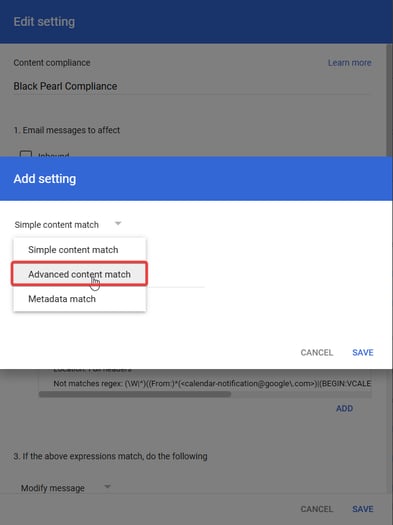
- Select Advanced Content Matching.
- Select Envelope Sender
Not Contains Text
caf_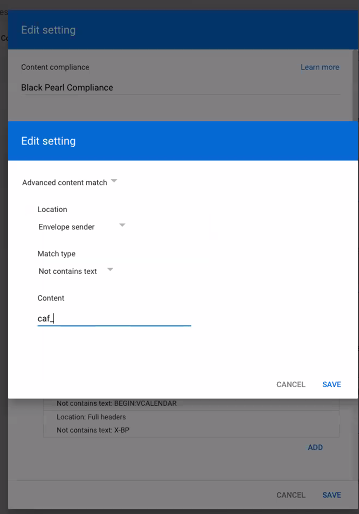
- Then click Save.
- And Save again.
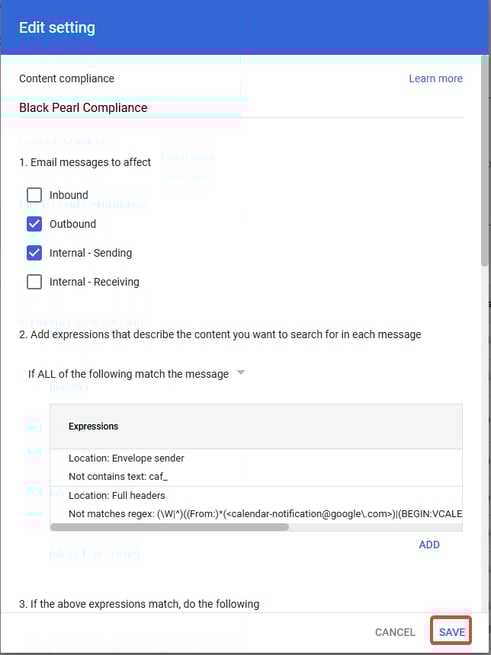
STEP 4 – Test
If possible trigger the automation to send a test email. If you have any issues, email support@blackpearl.com and we can assist you further.